Auto Count needs two layers in your MapperTool project: an RGB orthophoto and a digital surface model (DSM). Both are required, whether you want to count trees, cars, buildings or bales. A clear colour map is a good start, but the module also needs the surface information supplied by the DSM.
Before running the analysis, it helps to look at those layers with your counting task in mind. Can you distinguish the objects you want to count? Do both layers cover the area? Are there blurred sections or gaps that could affect recognition?
These checks are useful even if the project looks convincing when zoomed out.
Why does Auto Count need a digital surface model?
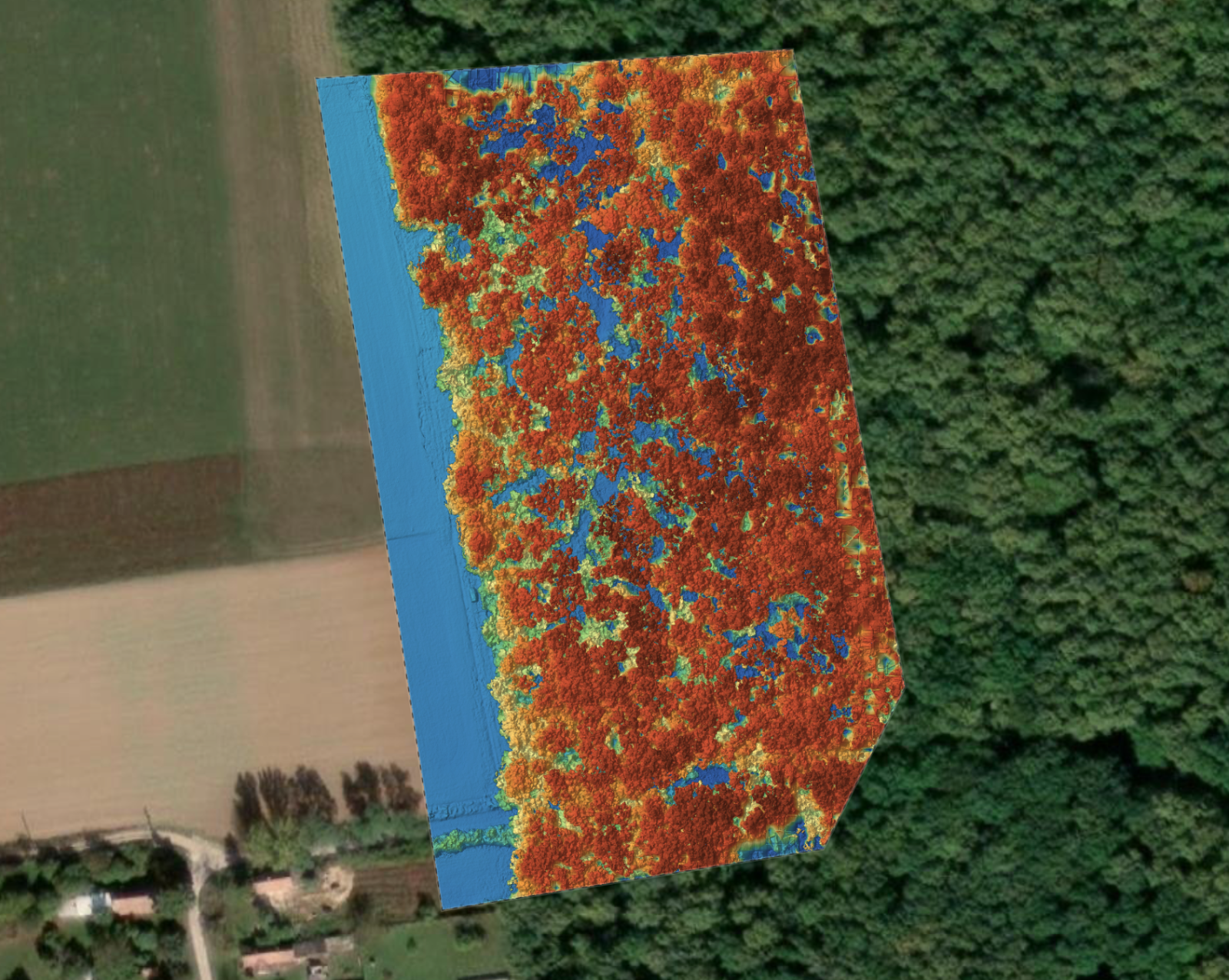
The RGB orthophoto shows colour, texture and shape. Those details help the software recognise a tree crown, a car or a roof. The DSM describes the elevation of the visible surface and adds information about its surroundings.
For example, a roof and an adjacent paved area may have similar colours, but their surface elevations can help distinguish them. Height information supports the detection process alongside the image, it does not replace a clear view of the object.
A digital surface model includes visible surfaces such as roofs and tree canopies. It should not be confused with a bare ground model. Nor does a single DSM elevation tell you an object's height above the ground underneath it. Auto Count uses the surface information for detection, a tree count is not a tree height survey.
Check these three things before running the module
1. The objects are recognisable at a useful zoom level
Open the RGB orthophoto and inspect the smallest objects you intend to count. A car should be distinguishable from the surface around it. Separate bales should be visibly separate. If several tree crowns blend into one patch, expect to spend more time checking that area.
Increasing the displayed zoom does not recover detail that was never captured. The same applies to exporting a map with more pixels: it cannot turn a blurred source object into a well-defined one. If a target is barely identifiable by eye, automatic recognition may miss it or confuse it with something else.
This is why one flight setup may be adequate for large buildings but unsuitable for tiny individual plants. Plan the survey around the objects you need to resolve, rather than assuming that every visible feature is equally easy to count.
2. The RGB and DSM layers cover the counting area
Both layers should describe the same surveyed scene. Inspect the intended area in each layer, particularly near the edges. A colour map extending beyond the useful DSM coverage does not provide the complete input Auto Count needs there.
Also look for obvious displacement: a roof in the colour image should correspond to the roof surface in the DSM. Missing patches or major mismatches deserve attention before you use the count.
If you only need part of the project, save the crop before starting. Auto Count uses that saved area for its analysis. Keep the boundary consistent if you plan to compare the result with another survey later.
3. The selected object type matches your question
Choose trees for a tree count, cars for a car count, and so on. One run targets one object category. A building count does not include nearby parked cars simply because they are also visible.
The automatic option can select a supported category from the scene. On a mixed site, an explicit choice makes your intent clearer. If you need both a car count and a building count, treat them as separate counting tasks.
Read the map before relying on the total
When the analysis produces a count, MapperTool displays the detected objects on the map by default. Start by checking a section where you can identify the objects confidently, then inspect denser groups, shadows and the survey boundary.
For buildings, pay particular attention to adjoining roofs and complexes with several roof sections. The software may group structures differently from the way you define a building for the job. The detected positions are not cadastral building footprints.
For parked cars, check that the orthophoto actually contains complete, recognisable vehicles. Movement during capture can leave distorted objects in the assembled map. A result from a survey is also a record of that survey, rather than a live measure of parking occupancy.
Correct the results in the project
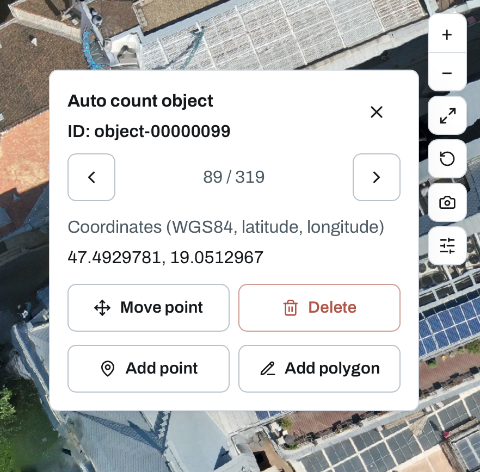
Click a detection to inspect its identifier and coordinates. You can move a point, delete an incorrect detection or add a missed object. Where an outline is present, it can be redrawn. The count updates with these changes, and the corrected results are included in the GeoJSON download.
Make those corrections against the imagery and your agreed counting rules. Adding a point records your review, it does not cause the software to detect or measure that object again. A new successful analysis replaces the previous result, so finish the analysis before investing time in a detailed manual review.
If the module cannot produce a supported count, do not interpret that as proof that the site contains no objects. Recheck the selected type and the input layers. A poor view or incomplete data can prevent a useful result even where objects are present.
Auto Count is available to Plus and Pro subscribers. With suitable RGB and DSM layers, it gives you an initial count, mapped detections and tools for checking them within the same MapperTool project. A few minutes spent inspecting the inputs makes that review easier to carry out and the resulting number easier to explain.
Find the plan that fits your workflow
Start free, explore the full workflow, then choose the plan that matches your projects.
View plans