
Solar Inspect is now available in MapperTool. The new module automatically recognises solar panels, flags suspected faults and lets you examine every panel individually before creating a PDF report. It is available exclusively to Pro subscribers.
For teams looking for solar mapping software that supports the inspection after the flight, Solar Inspect connects the survey maps with the work of reviewing individual panels. You bring a thermal orthomosaic and an RGB orthomosaic. The module helps identify panels that need attention, while giving you control over the final review.
Solar mapping software with automatic panel recognition
A large solar farm can contain long stretches of almost identical rows. Locating panels manually and checking the same patterns repeatedly takes attention away from investigating the findings.
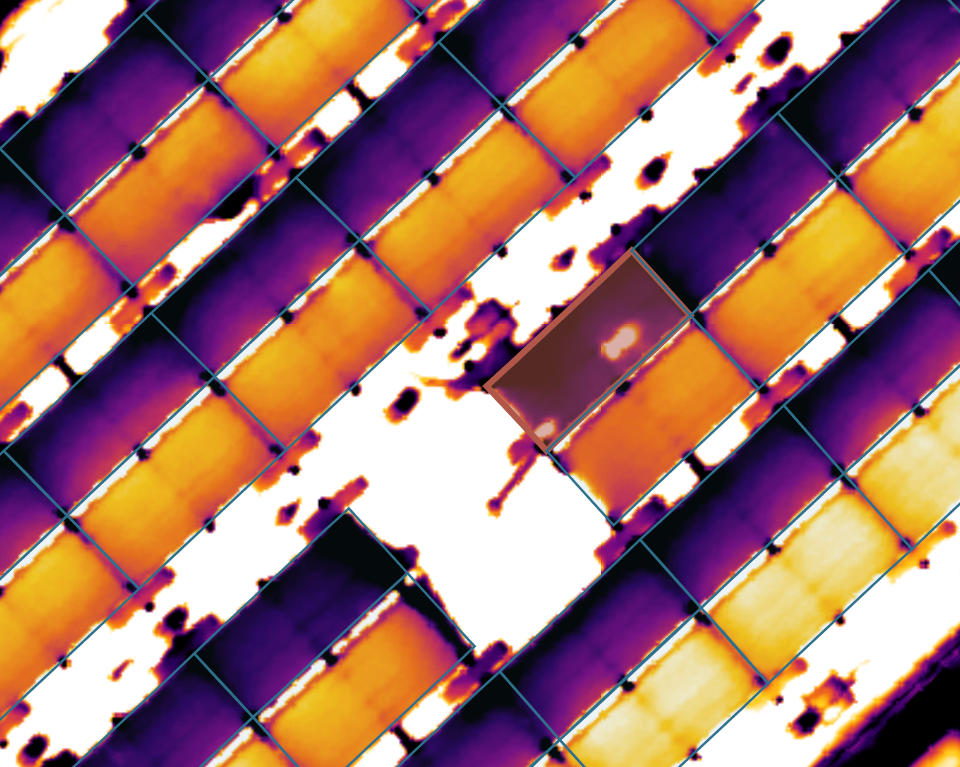
Solar Inspect recognises the panels automatically and flags abnormal behaviour, including temperature outliers and patterns associated with cell and panel faults. You can use the results to focus your examination on particular panels while still working with the wider survey.
The module is suited to large solar farms as well as smaller installations. Its practical advantage grows with the amount of repetitive inspection work, automatic recognition gives you a starting set of panels to review, and the fault indications help direct that review.
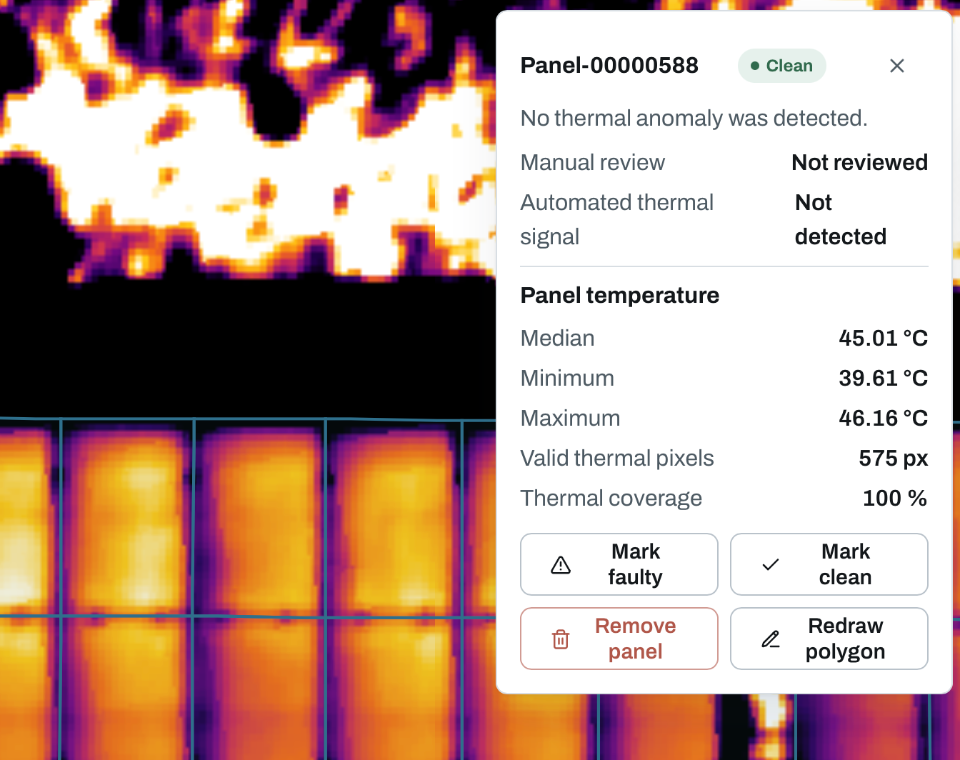
Every panel remains available for individual review
You can inspect each panel separately in Solar Inspect. If a result needs correction, the module provides direct manual controls:
Mark the panel as faulty.
Mark it as Clean.
Redraw its outline.
Delete an incorrect panel detection.
Add a new panel manually if automatic recognition missed it.
These controls let you correct both the panel geometry and its inspection status. For example, an outline may need adjusting at the edge of a row, while a panel that was not flagged may still deserve attention after a closer look. You can make those corrections within the review rather than carrying them only as notes in a separate document.
Manual review also gives you room to interpret the thermal result alongside the RGB layer. A visible shadow or patch of soiling can be relevant to an unusual temperature pattern. A flagged panel provides a reason to investigate, establishing the physical cause may still require a site check.
Prepare two orthomosaics and use High processing
Solar Inspect needs a thermal layer and an RGB layer, both as orthomosaics. The thermal map supplies the temperature information, while the RGB orthomosaic provides the visible view of the array.
Use High for the processing quality when preparing a Solar Inspect project. Panel boundaries and small thermal features deserve as much of the captured detail as the processing can retain. High works with the resolution in the source imagery, so suitable flight height, sharp images and complete coverage still matter.
If you are processing the survey in MapperTool, the thermal output documentation explains how RGB and radiometric thermal photographs can be handled in the same project. The processing quality guide describes the High setting.
Before starting the analysis, check that both maps cover the intended array and that the same panels line up between them. This gives you a useful foundation for reviewing the detections against the imagery.
Create a PDF report after the review
Once you have checked the findings and made any corrections, Solar Inspect makes it straightforward to create a PDF report. This provides a document for the inspection handover, while the software lets you continue examining panels individually.
For a survey provider, that means the deliverable can extend beyond supplying thermal maps. You can review the detected panels, correct the results and prepare the inspection report as part of the same job. For an operator, it provides a practical way to examine the array before deciding which findings need attention on site.
Available now with MapperTool Pro
Solar Inspect brings automatic detection, manual panel review and PDF reporting into MapperTool's solar inspection workflow. Prepare the RGB and thermal orthomosaics using High processing, then use the module to work through the results.
Find the plan that fits your workflow
Start free, explore the full workflow, then choose the plan that matches your projects.
View plans